What is live streaming?
Live streaming means sharing video as you film it. Viewers see you right away and can type comments that you read and answer on the spot. When the stream ends, many apps let you save a replay so people who missed it can watch later. It is the closest thing social media has to a live TV show, and you run it.
People go live for all kinds of reasons. A bakery might show a cake being decorated. A software company might demo a new feature and take questions. A teacher might run a study session the night before an exam.
Most big networks have a live option, including Instagram, TikTok, YouTube, Facebook and LinkedIn. Twitch is built mainly around live streams, and Discord lets people stream to a server. Each app has its own rules about who can go live and how long a stream can run. The tools differ too, such as adding guests, pinning comments, running Q&A or receiving gifts. Check each app's current rules before you plan.
Why go live
- Real connection: viewers can talk to you and get answers right away.
- Alerts to followers: many apps send a notice to followers when you start.
- Little editing: there is nothing to cut or polish afterward.
- Ways to earn: some platforms offer gifts or tips during streams.
- Content for later: one stream can be cut into many short clips.
How to plan a live stream
- 1Pick a topic and title
Say exactly what viewers will get.
- 2Announce it
Post the time a few days ahead and remind people on the day.
- 3Test your setup
Camera, light, sound and internet in a private test.
- 4Go live with a helper
Someone else watches the chat and removes spam.
- 5Reuse the replay
Save it and cut short clips to post later.
- Pick a topic and a clear title. "Live Q&A: fixing slow websites" tells people what they will get.
- Announce it ahead. Post the time a few days before in posts and Stories, then remind people an hour before.
- Test your setup. Check camera, light, sound and internet in a short private test.
- Write a short outline. A few points and a closing call to action keep you on track.
- Get a helper. Ask a teammate to answer questions in the chat and remove spam.
What to do during the stream
Start the real content within a minute or two. Viewers drift in over the first few minutes, so greet people by name as they join and repeat your main point now and then for latecomers. Read questions out loud before you answer them, since people watching the replay can't see the chat in the same way.
Watch how your audience grows and shrinks. A typical stream builds for the first part, peaks, then slowly loses viewers. The chart below shows that shape for a 35-minute stream. Plan your best moment for the peak and wrap up before the drop gets steep.
People watching at each point
| Viewers | |
|---|---|
| 0 min | 12 |
| 5 | 48 |
| 10 | 75 |
| 15 | 90 |
| 20 | 86 |
| 25 | 80 |
| 30 | 70 |
| 35 | 52 |
After the stream
- Save the replay and post it, or share a link to it.
- Cut short clips of the best answers and post them over the next week.
- Reply to comments that came in after you ended.
- Note the peak viewer count and the questions people asked. Both help you plan the next one.
For example, a gardening account might go live for 30 minutes on Sunday, then post four short clips from it during the week. Each clip ends with "Full stream on my profile."
How to measure a live stream
Most apps show stats once the stream is over. Look for these:
- Peak viewers: the most people watching at one time.
- Average watch time: how long a typical viewer stayed.
- Comments and reactions: how much people talked back.
- Replay views: how many people watched after it ended.
- New followers: how many people followed you during or right after the stream.
Compare each stream with your last few, since live numbers swing a lot from week to week. If replay views beat live views, your audience may prefer to watch later, so put more effort into the clips. If people leave in the first five minutes, tighten your opening. Keep notes on the day, time and topic of each stream so you can spot what draws the biggest crowd.
Common mistakes
- Going live with no warning, which often means an empty room.
- Waiting too long for people to show up, so early viewers leave.
- Ignoring comments, which wastes the whole point of being live.
- Forgetting to check your background or what is open on your screen before you share it.
- Running long past the point where viewers started to leave.
Tools that help
 Capybaroar SchedulerOur toolSchedule the posts that announce your stream on every channel ahead of time.Open
 OBS StudioFree software for recording and live streaming from your computer.Visit site
 CapCutA video editor for cutting short clips from your replay.Visit site
 YouTube StudioYouTube's dashboard for setting up streams and seeing how they did.Visit site
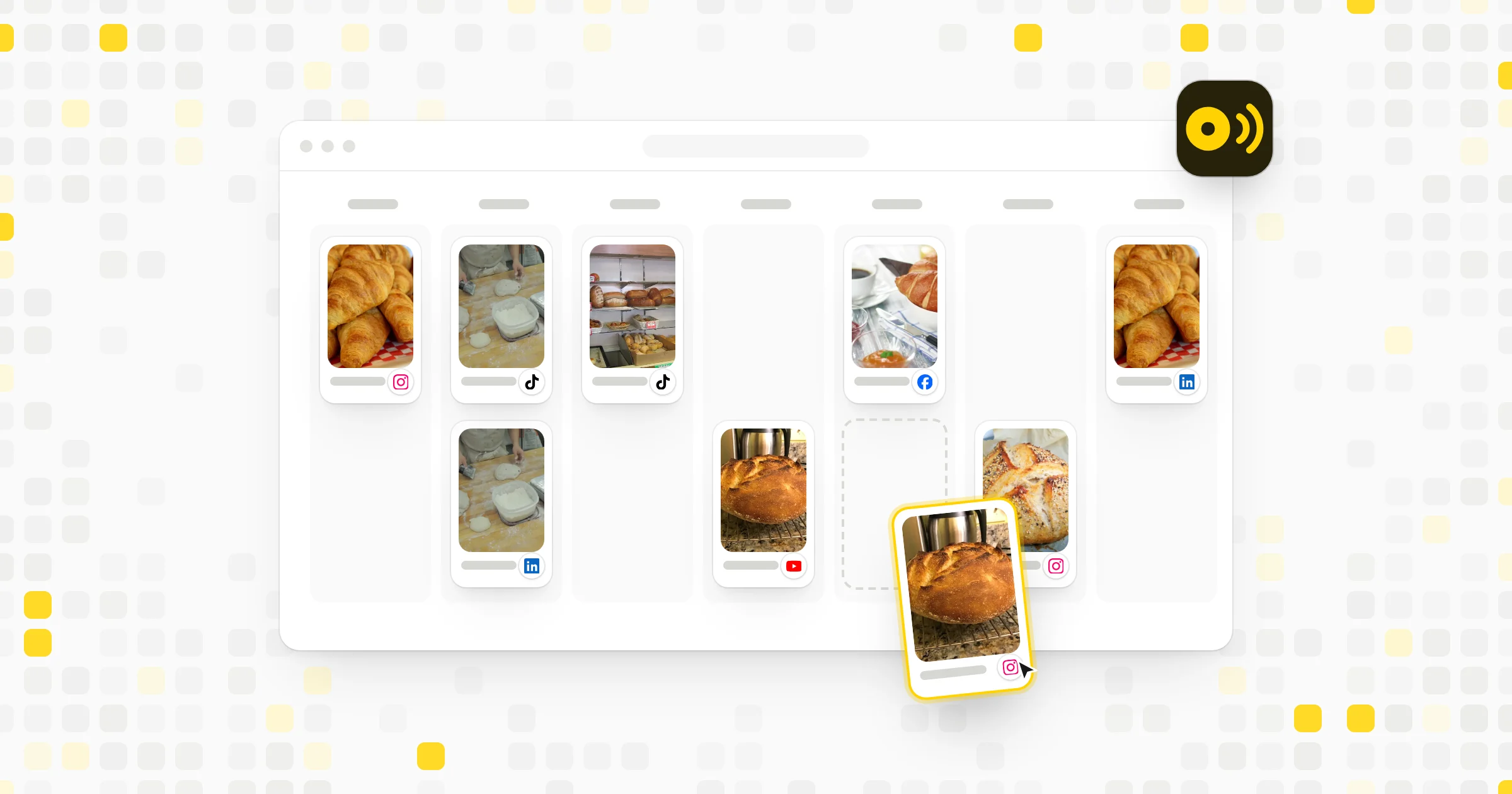 Compare tools15 Best Social Media Scheduling Tools, Compared (2026)
Related terms
- YouTubeYouTube is Google's video platform, where people upload and watch long videos and Shorts, and creators can earn money from their channels.
- EngagementEngagement is any action people take on your social media content, such as liking, commenting, sharing, saving or clicking.
- Community managementCommunity management is talking with your audience on social media: replying to comments and messages and keeping discussions friendly and safe.
- MonetizationMonetization is turning your social media content or audience into income through ads, sponsorships, sales or paid fan support.
- Broadcast channelA broadcast channel is a one-to-many messaging feature where a creator or brand sends updates to followers who join, usually without open replies.