Docs / Get started
Schedule your first post
Write a post once, check how it looks on each network, then schedule it, queue it or post it now.
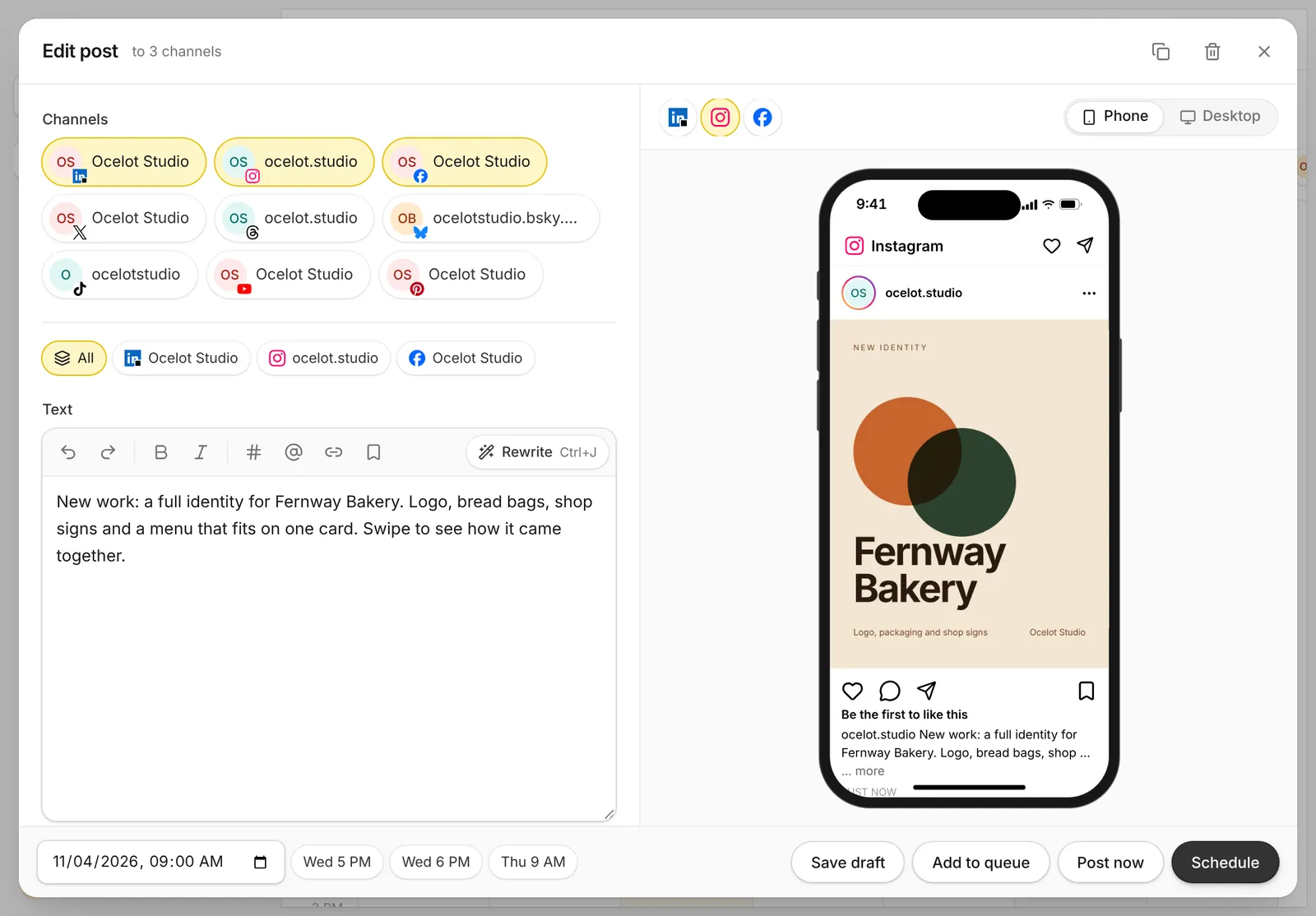
Steps
- Open the calendar. Click Calendar, then New post.
- Pick channels. Choose one or more connected channels at the top of the editor.
- Write your post. Type your text. The counter shows how much room each network has left.
- Add pictures or a video. Upload files or pick them from your media. Some networks need media, like Instagram, TikTok, YouTube and Pinterest.
- Set network options. Click a channel's tab to change things for that network only, like an Instagram Reel, a YouTube title or a Pinterest board. You can also change the text for one network.
- Check the preview. The right side shows how the post will look on each network. Click a video to play it.
- Choose when it goes out.
- Schedule: pick a date and time.
- Add to queue: put it in your next open queue time.
- Post now: publish right away.
- Save draft: keep it for later.
After it posts
Open the post again from the calendar to see each channel's result. When a network gives Capybaroar the post's address, an Open post link shows next to that channel. If a network turns a post down, its reason shows in the same place.
Tips
- Use a first comment on Instagram, Facebook and LinkedIn for links or hashtags.
- Upload many posts at once with Bulk in the calendar.
- Let the agent write a whole week of drafts, then edit and schedule them here.