What is bulk scheduling?
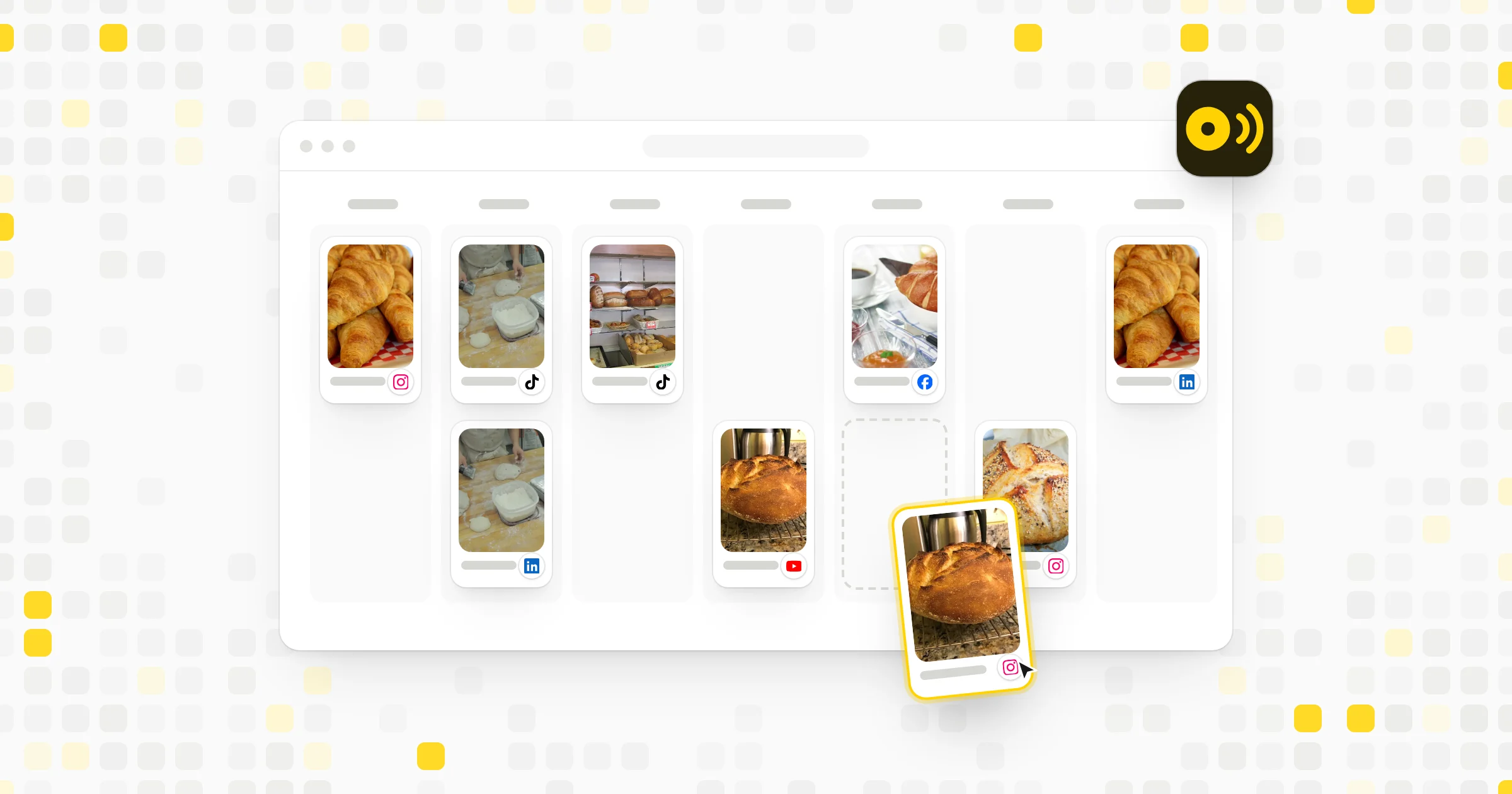
Bulk scheduling means adding a large set of posts to your scheduler in one go instead of building them one at a time. The most common way is a spreadsheet or CSV file where each row is one post. Columns hold the text, the date, the time, the account and sometimes a link or a media file. The tool reads the file and places every post on your calendar.
Some tools also let you drop a folder of images or videos in at once and write each caption on a single screen. Others let you send a batch of posts into a queue that fills preset time slots. All of these count as bulk scheduling, because the goal is the same: plan many posts in one sitting.
How bulk scheduling works
Behind the scenes, the scheduler turns each row into a draft post. It checks the row against the rules of the network you picked, such as text length and file type. Rows that pass become scheduled posts. Rows that fail get flagged so you can fix them before anything goes live.
- 1Write the rows
One post per row with text, account, date and time.
- 2Upload the file
The tool reads every row and builds a draft for each one.
- 3Fix flagged rows
Missing times or captions over the limit come back for you to correct.
- 4Review the calendar
Scroll the month for gaps, typos and clashes.
- 5Posts go out
Each post publishes at its own time.
Here is an example. A bakery plans a month of posts in a shared sheet: 20 rows for Instagram, 20 for Facebook and 12 for Pinterest. One upload puts all 52 posts on the calendar. Two rows come back with errors, a missing time and a Pinterest description over the 500 character limit. The owner fixes both in a few minutes and uploads them again.
Why bulk scheduling matters
- Big time savings. Planning a month of posts in one sitting is faster than logging in every day to write one.
- Easy team work. Writers can draft in a shared sheet that the scheduler then imports.
- A natural fit for batching. After you create a month of content, you load it all at once.
- Simple repeat content. Daily tips, quotes, event countdowns and product features are easy to lay out in a table.
How to bulk schedule posts step by step
- Download the tool's template. Each tool expects its own columns and date format, so start from its file.
- Fill in one row per post. Add the text, account, date, time and any link or media.
- Check each network's limits. Threads allows 500 characters, Bluesky 300 and a LinkedIn post 3,000. A caption that fits one may break another.
- Set the time zone. Confirm that the times in your sheet match the time zone your tool uses.
- Upload and fix errors. Read every flagged row and correct it before you move on.
- Review the calendar. Scroll through the month to spot gaps, typos and posts that land too close together.
Bulk scheduling vs a queue
With bulk scheduling, each post usually gets its own date and time. With a queue, you set recurring slots, such as weekdays at 9 a.m., and posts fill the next open slot in order. You decide the order once, and the queue picks the exact times.
| Bulk scheduling | Queue | |
|---|---|---|
| Each post gets its own date and time | – | |
| Posts fill preset time slots | – | |
| Good for launches with fixed dates | – | |
| Good for evergreen posts | Sometimes | |
| Loads many posts at once |
Many teams use both. They bulk upload a planned campaign with fixed dates, such as a product launch, and keep evergreen posts in a queue to fill the slower days between.
How to tell if it is working
Bulk scheduling is about saving time, so start by noting how long planning takes you each month before and after. Then check that your results hold up. Compare reach and engagement for bulk scheduled posts with posts you made by hand. If the bulk posts lag behind, the cause is often a copied caption that doesn't suit each network, or a time slot when your audience is offline. Fix those two things first before you blame the method.
Common mistakes
- Time zone mix-ups. A sheet written in one time zone and imported in another can shift every post by hours.
- One caption for every network. Text that suits Instagram may be far too long for X at 280 characters.
- Scheduling too far ahead. A post written in spring can feel stale by summer. Look over upcoming posts each week.
- Forgetting the news. Pause the calendar when something big happens so a cheerful promo doesn't land at the wrong moment.
- Broken media links. If your sheet points to files by web address, open every link before you upload.
Tools that help
 Capybaroar SchedulerOur toolUpload many posts at once, then see them all on one calendar with a preview for each network.Open
- Character counterOur toolOur free counter shows how long a caption is so you can check it against each network's limit.Open
 Google SheetsA free spreadsheet for drafting a month of posts with your team before you upload them.Visit site
 Compare tools15 Best Social Media Scheduling Tools, Compared (2026)
Related terms
- Social media schedulingSocial media scheduling is writing posts ahead of time and setting them to publish automatically at a chosen date and time.
- BatchingBatching is creating many pieces of social content in one focused session, such as writing a week of posts or filming several videos in one day.
- Content calendarA content calendar is a schedule of planned social media posts showing what will go out, on which channel, on which day and at what time.
- QueueA queue is a line of posts waiting to be published in order, each one going out at the next open time slot you set in a scheduling tool.
- Auto-postingAuto-posting is publishing social media content automatically at a set time or after a trigger, without someone pressing post by hand.